Device Console Access
Introduction
To configure the different devices used in the different simulation, we need to access their console.
Accessing Device Console
Emulated devices used in GNS3 could be access with different ways, depending on the type of device:
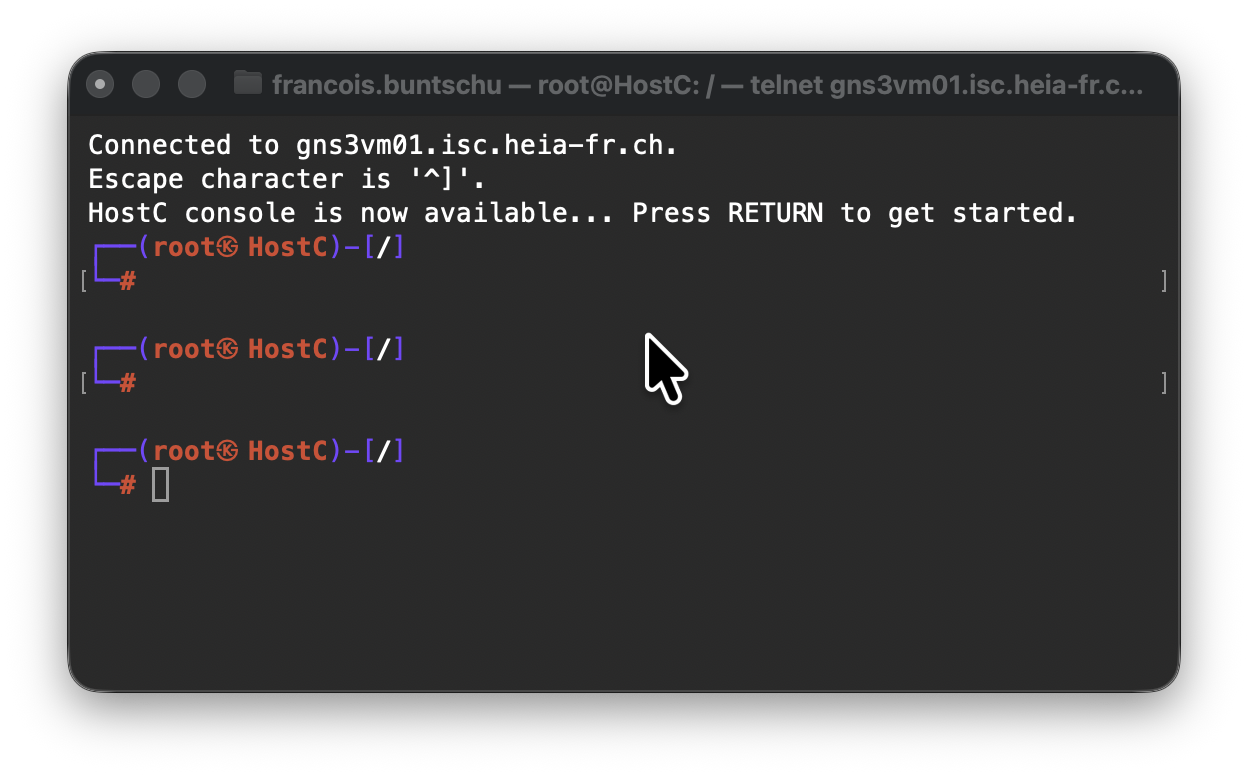
- Router Console access with a terminal emulator
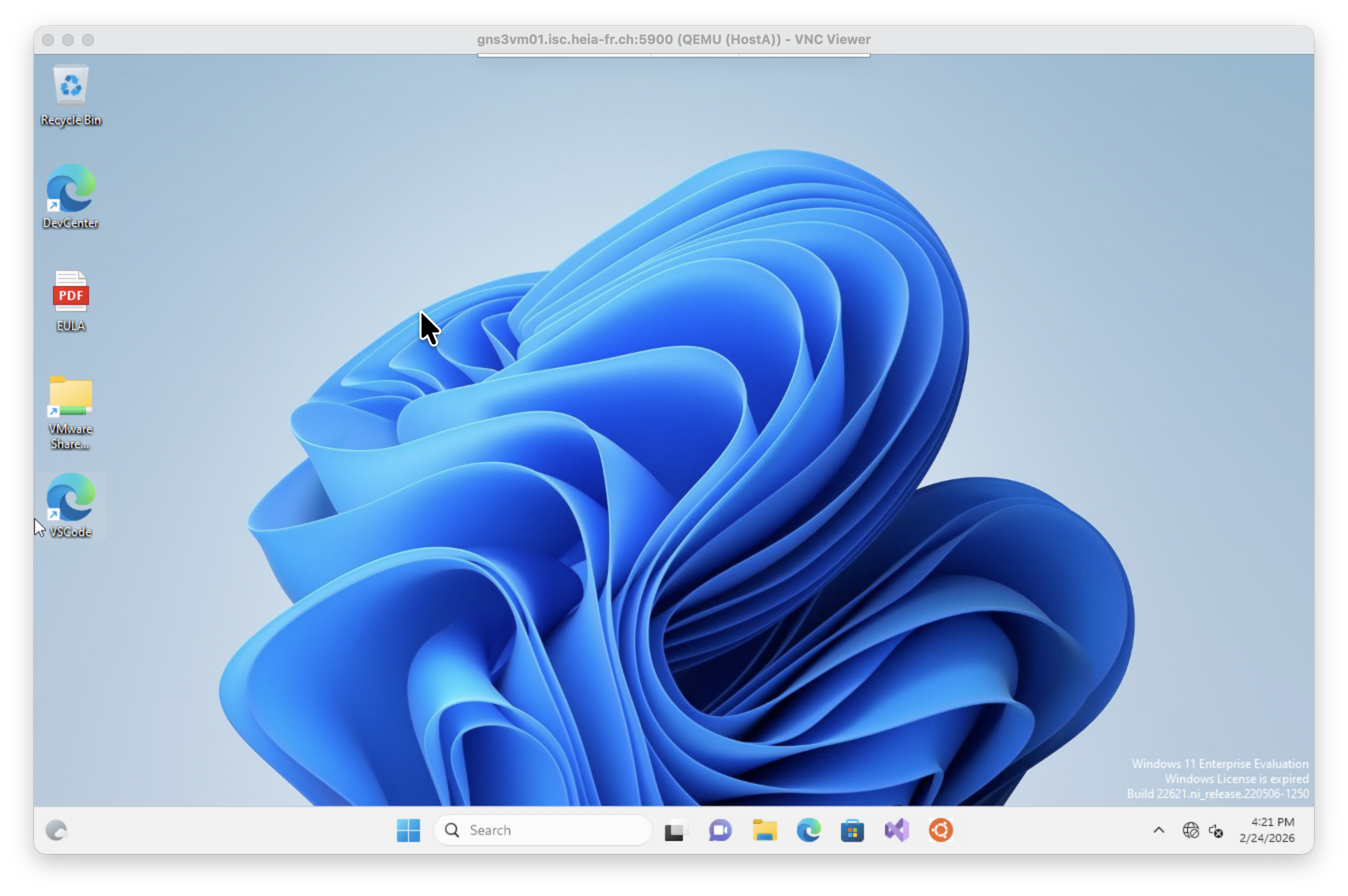
- Windows Machine or devices with a GUI (Graphical User Interface) with a VNC Client
Some examples:
Installation & Configuration
Terminal Access
Per default, GNS3 propose different settings for the terminal access to the console.
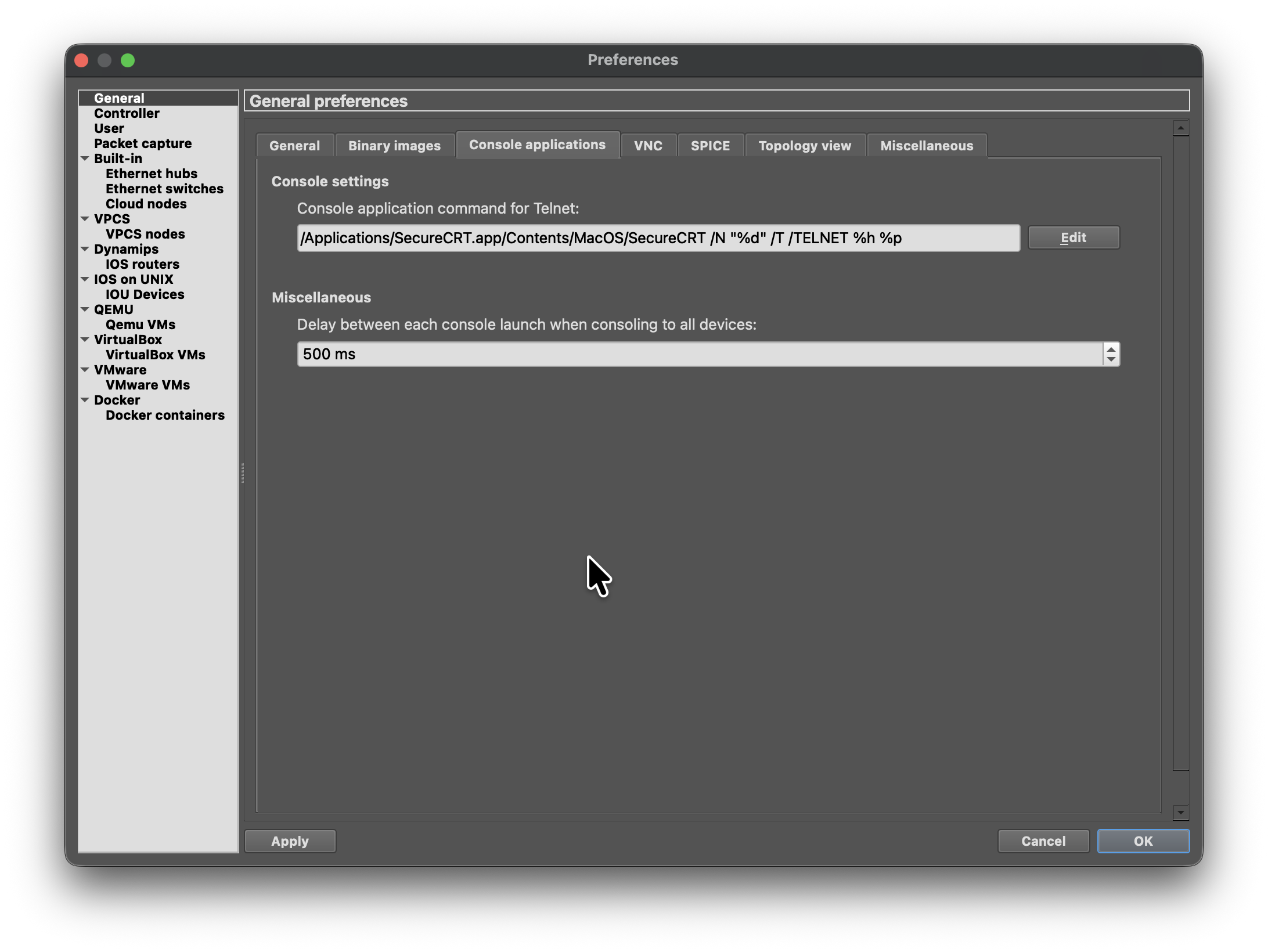
Go to Preferences → General → Console Applications and select the most appropriate application for your machine. In the following example on a Mac with OSX, the Secure CRT application is selected.
VNC Access
Per default, GNS3 propose different settings for the VNC access to the console, for example for Virtual Machine (e.g. Windows).
We propose to use the “VNC Viewer” from RealVNC, available here for download.
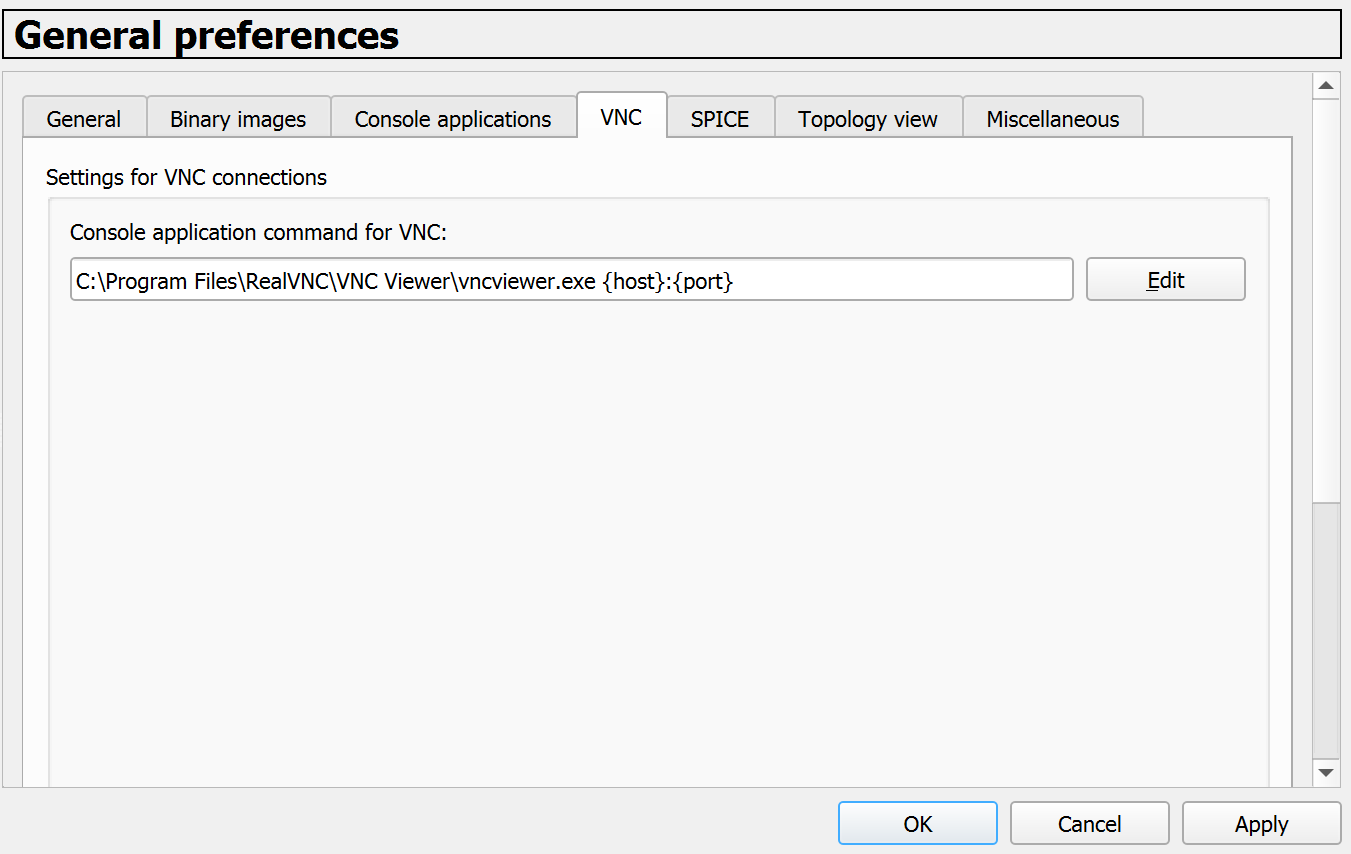
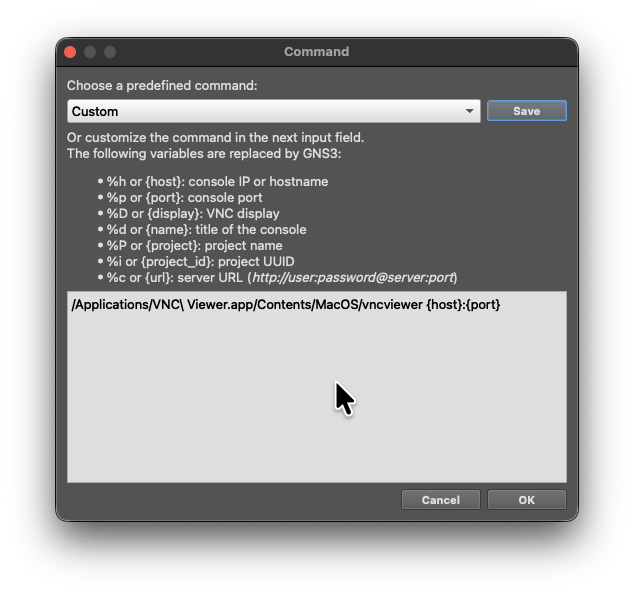
Once installed, Go to GNS3 Preferences → General → VNC and select the custom settings (Edit):
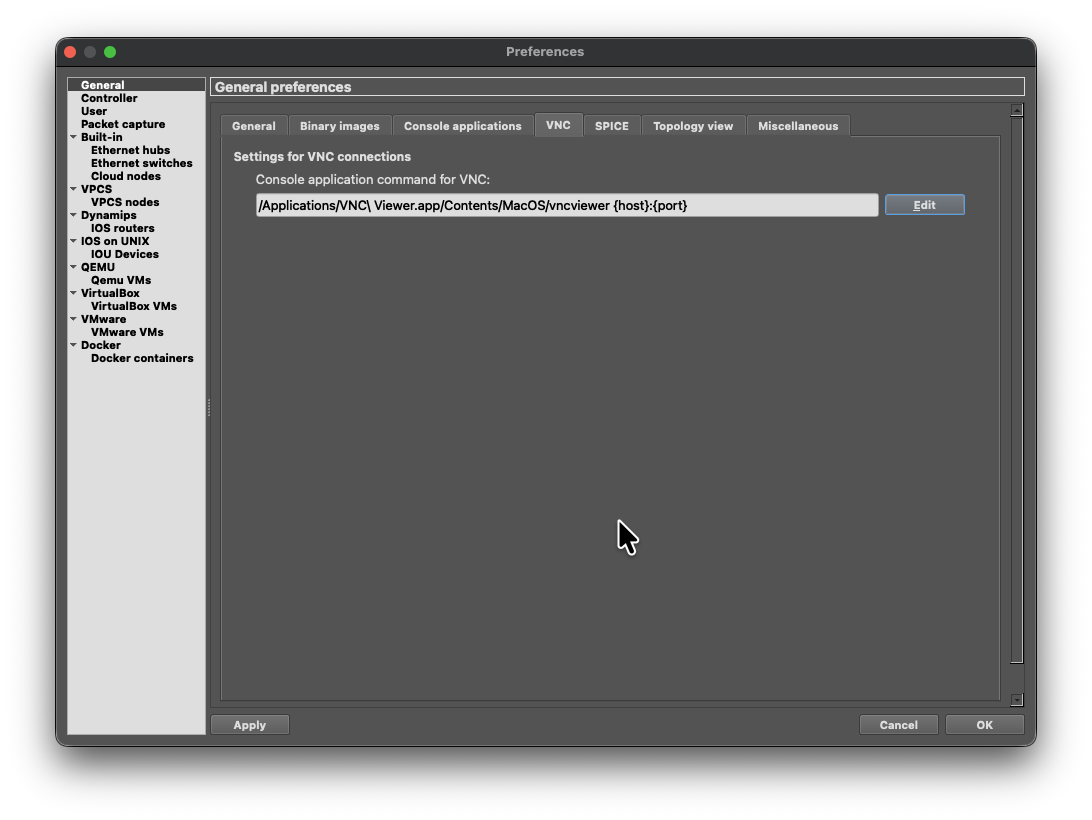
OSX Settings
The settings for the RealVNC viewer on an OSX machine will be:
Windows Settings
The settings for the RealVNC viewer on an Windows machine will be: